
Scan status label QR code
Status label QR codes allow you to quickly update item statuses by scanning physical QR codes. This is perfect for warehouse operations, manufacturing floors, or any environment where you want to update statuses without touching a screen.
How it works
- Generate status label QR codes using the dedicated board view - each status label gets its own QR code
- Print or download the QR codes and place them in your workspace
- Scan an item QR code - the app opens the camera to scan a status label QR code
- Scan the status label QR code - the item’s status is automatically updated
Setting up the automation
Create an automation using the template:
“When QR code named Name is scanned ask to scan QR code for Status column labels and save it when submitted”
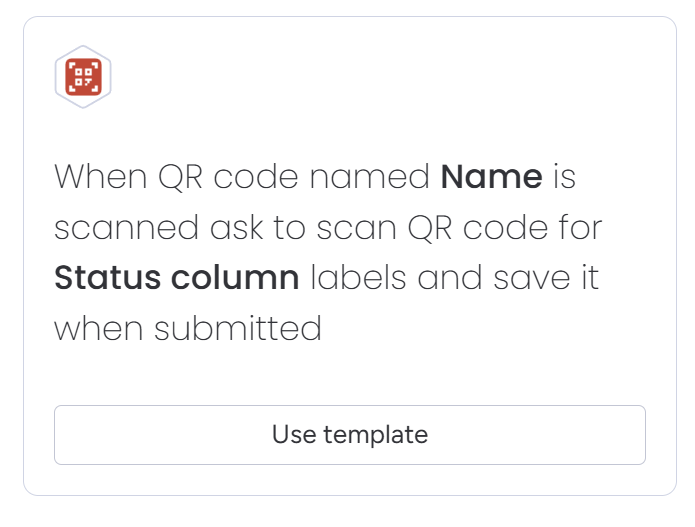
Configure the automation with:
- Name - The QR code name (must match your QR code creation automation)
- Status column - The status column to update when a status label is scanned
Generating status label QR codes
To generate QR codes for your status labels:
- Open your board in monday.com
- Click the + button to add a new view
- Search for QR Flow – status QR codes and add it
- The view displays all status columns with their labels, each with a QR code
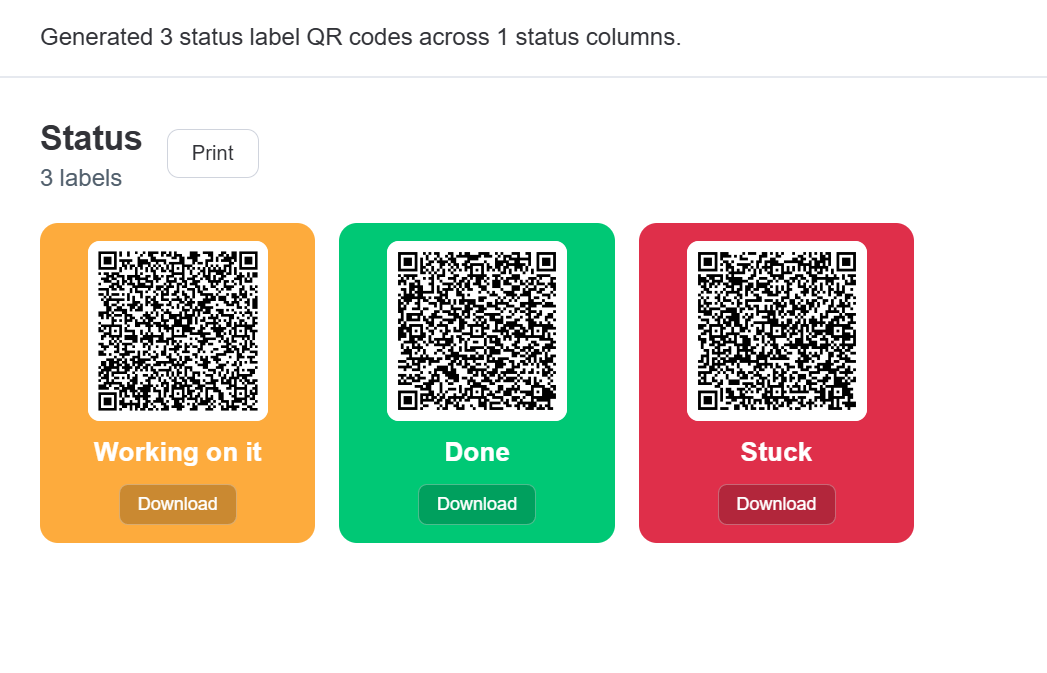
From this view you can:
- Print all QR codes for a status column
- Download individual QR codes as high-resolution PNG files
Workflow example
Imagine a warehouse with items tracked on a monday board:
- Print item QR codes and attach them to physical items
- Print status label QR codes (“Received”, “In Storage”, “Shipped”) and place them at different stations
- When an item moves to a new station, scan the item’s QR code
- The app opens the camera - scan the station’s status label QR code
- The item’s status updates automatically in monday.com