
Access control (PIN codes)
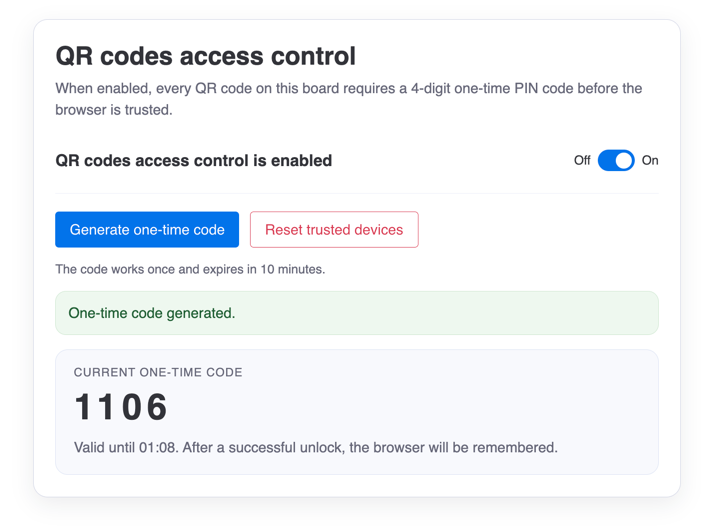
Access codes allow you to restrict who can scan QR codes on your board. When enabled, users must enter a one-time PIN code before they can view QR code content. Once verified, their browser is trusted and they can scan freely.
How it works
- Enable access control using the dedicated board view
- Generate a one-time code (4-digit PIN) when someone needs to scan
- Share the code with the person scanning - it expires in 10 minutes
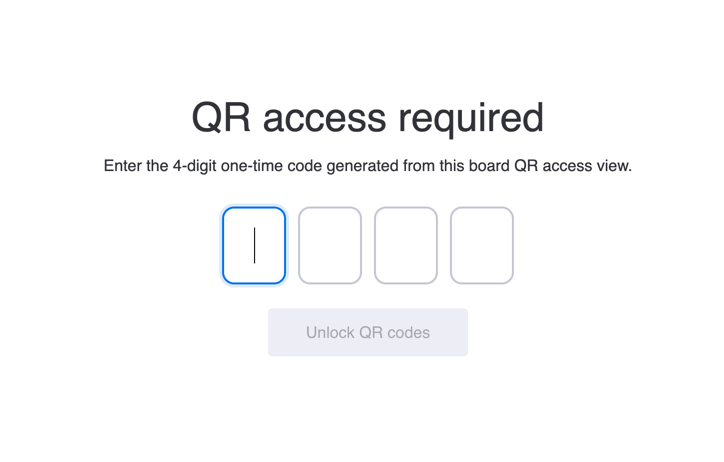
- Scanner enters the code on the unlock page
- Browser becomes trusted and can scan QR codes from this board freely
Setting up access control
- Open your board in monday.com
- Click the + button to add a new view
- Search for QR Flow - access control and add it
- Toggle Enable access control to turn it on
Generating one-time codes
When someone needs to scan QR codes from your board:
- Open the QR Flow - access control view
- Click Generate code
- Share the 4-digit code with the person scanning
- They have 10 minutes to use the code before it expires
Browser trust
After successfully entering a code, the browser is trusted for an extended period. This means:
- The user won’t need to enter codes again from that browser
- Trust applies only to QR codes from this specific board
- Different boards require separate verification
Resetting trusted devices
If you need to revoke access for all previously trusted browsers:
- Open the QR Flow - access codes view
- Click Reset all devices
- All browsers will need to re-verify with a new code
Use cases
- Warehouse security - Only authorized personnel can update inventory via QR scans
- Event management - Control who can check in attendees
- Asset tracking - Restrict asset status updates to specific teams