
Getting started
Clockify Connector bridges time tracking and project management by syncing your data between Clockify and monday.com. Choose between one-way or two-way sync depending on your needs. The app supports syncing Clockify time entries, projects, clients, and tasks to monday items while preserving the relations between them.
You can also start Clockify timers directly from monday.com items.
Installation
The app consists of two applications - one in the Clockify marketplace and one in the monday marketplace.
Installation in Clockify
- Go to the Clockify marketplace and find the “monday Connector” application.
- Click Install.
Installation in monday
- Click here to visit the installation page.
- Specify the workspaces where the app should be installed.
- Click Install.
Usage
Synchronization is configured on the monday side. To set it up, follow these steps:
- Go to your board and add the “Clockify 2-way sync” board view.
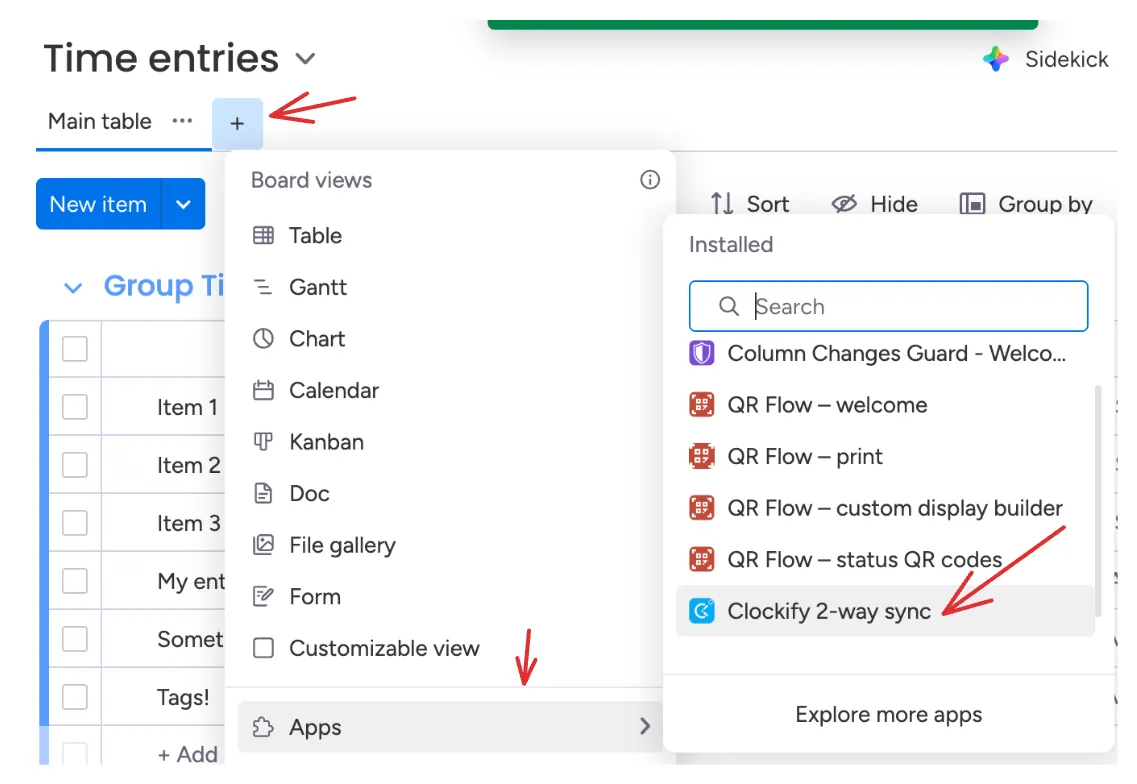
- You’ll be asked to authorize the monday application. Click “Authorize”.
- Next, you’ll need to acquire a connection key to associate your monday board with your Clockify workspace. Go to your Clockify account, click on the “monday Connector” app you installed earlier, then click “Generate Connection Key”.
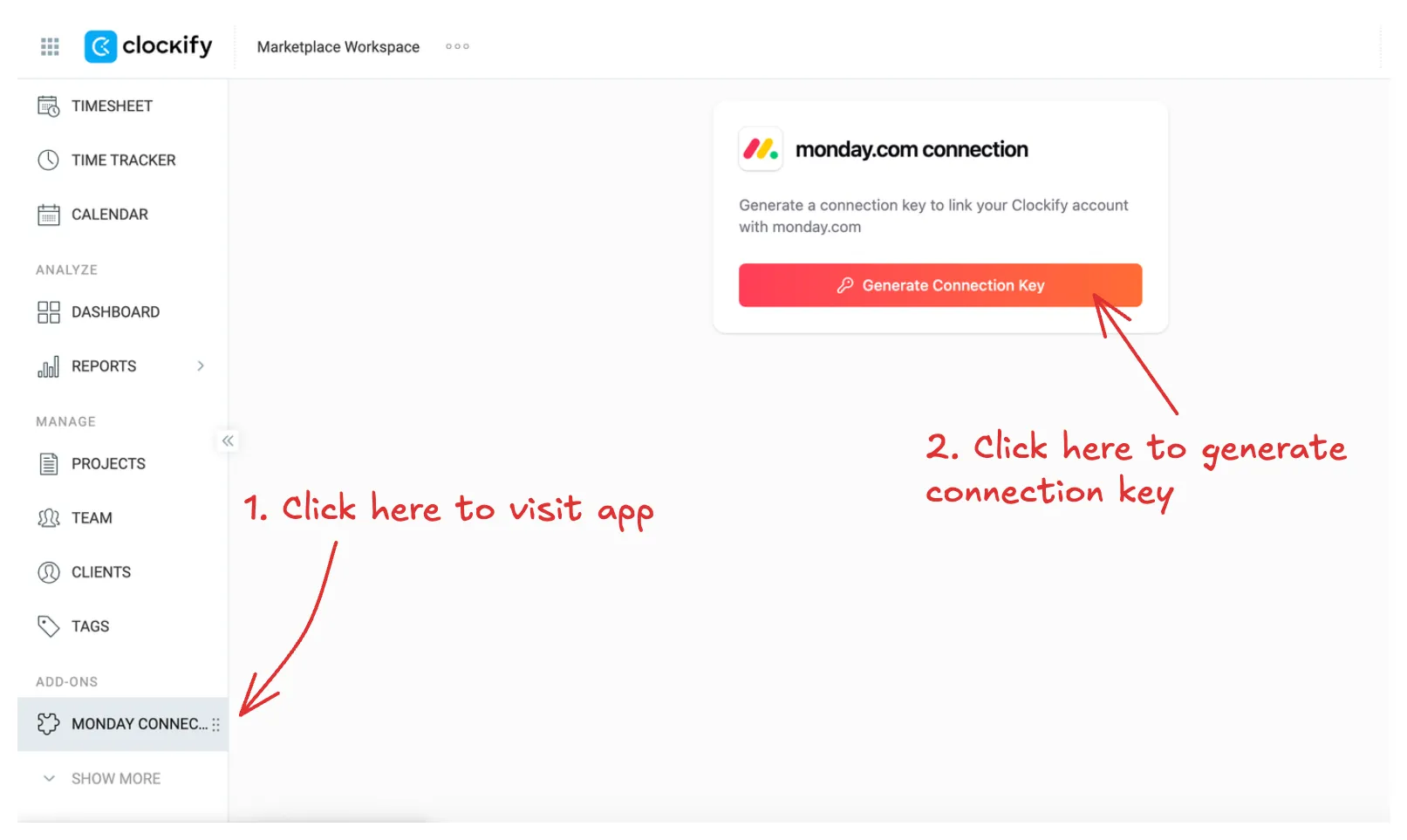
- Copy the connection key and paste it in the monday board view.
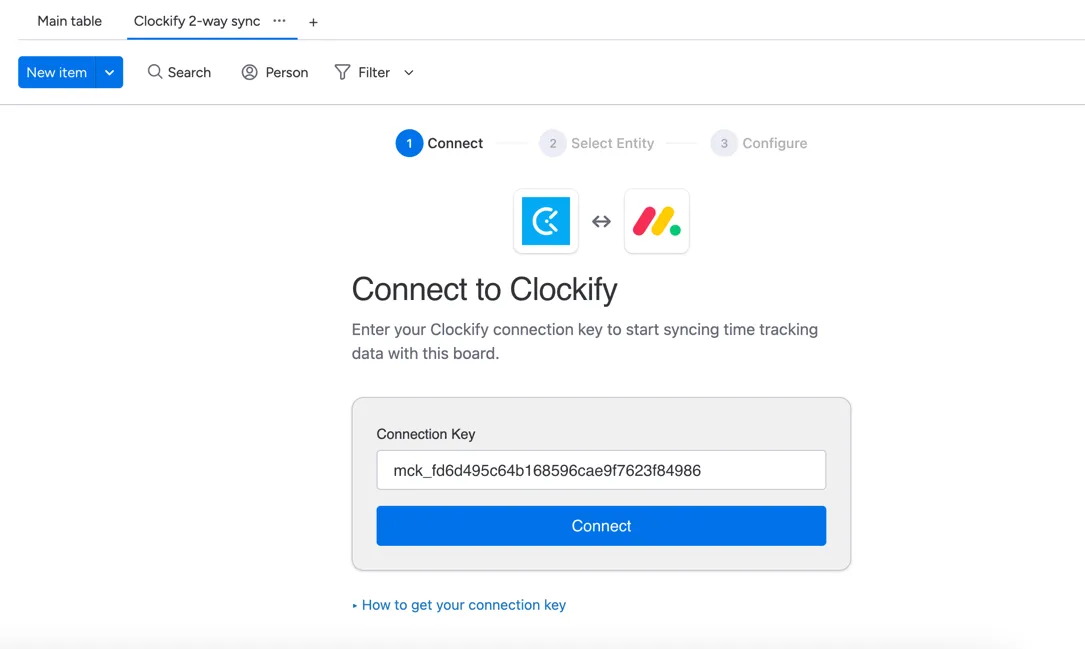
- Click connect and select one of the supported Clockify entity types (Time entries, Projects, Tasks, or Clients).
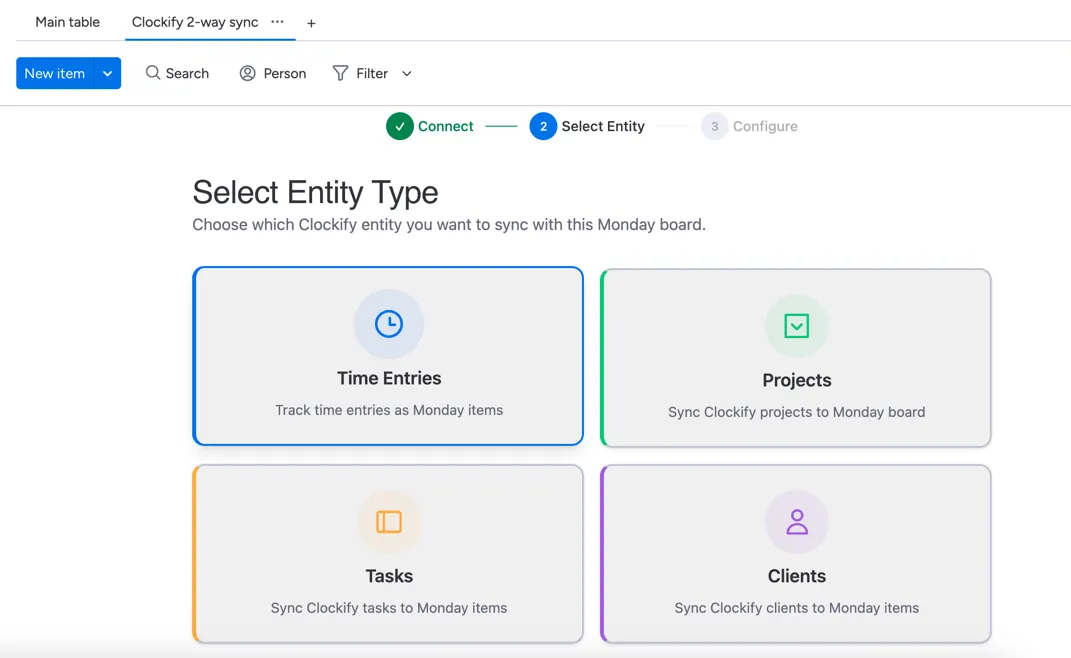
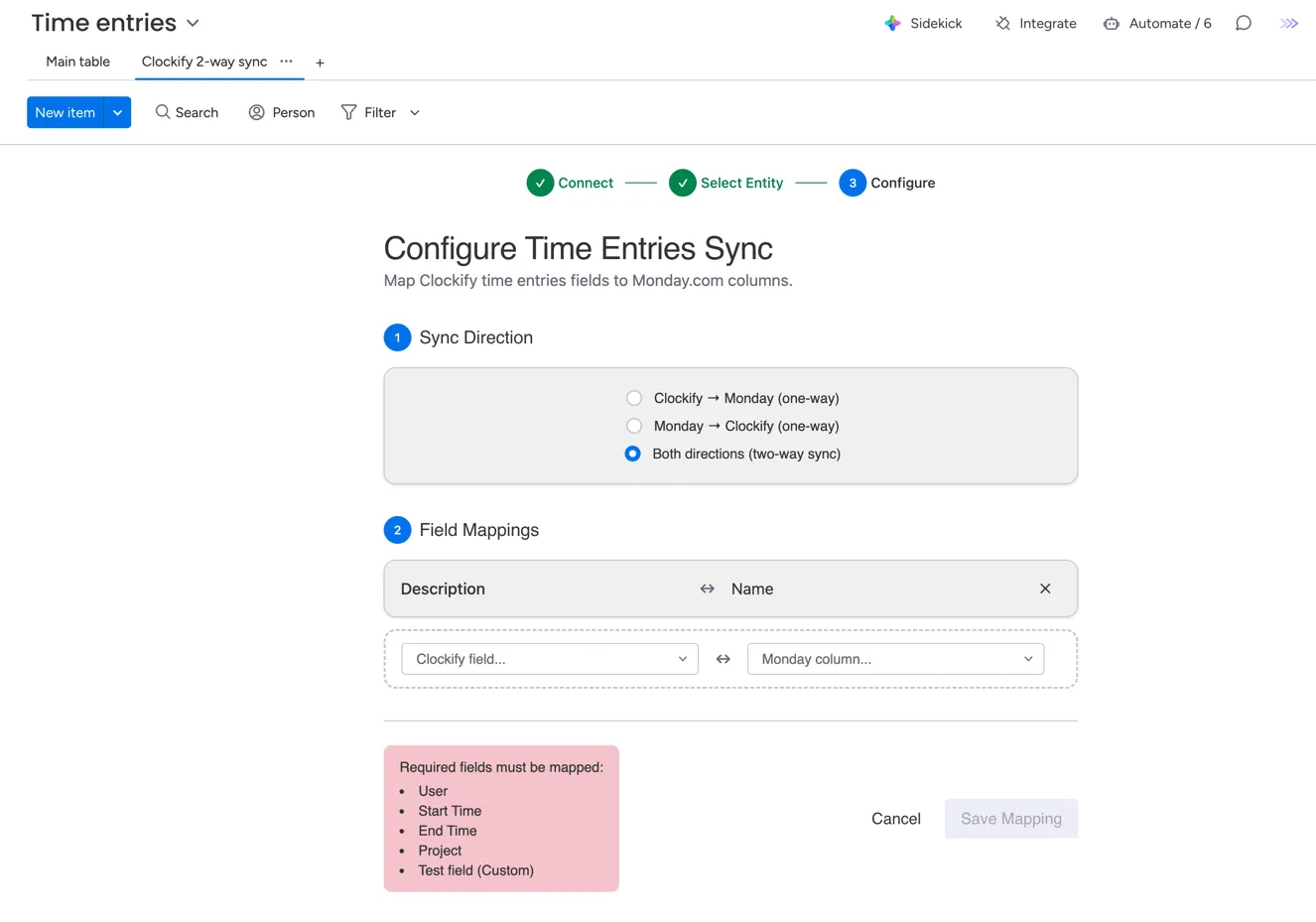
- Select the synchronization direction and configure field mappings between systems. Note that some fields must be mapped to complete the configuration.
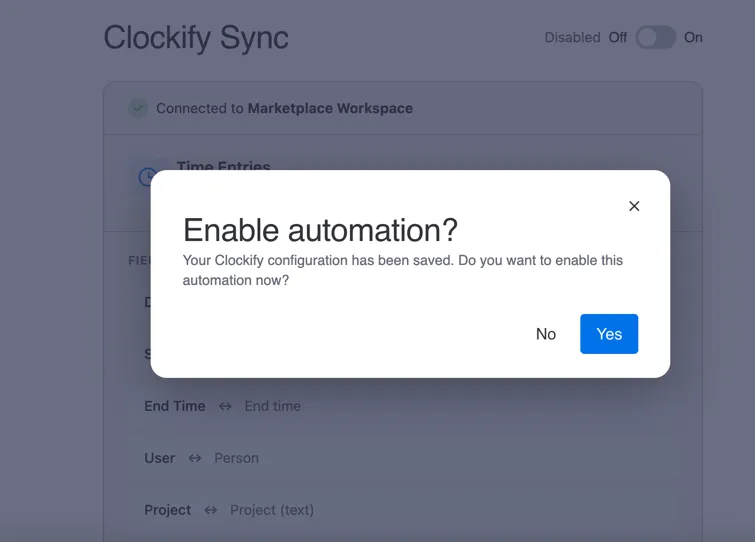
- Enable synchronization now or later using the toggle in the top-right corner.
- All done! Test your configuration by adding or editing an item, or by adding or editing the configured Clockify entity (depending on your sync direction). Synchronization usually takes up to 5 seconds.
Relation synchronization
The app can be configured to synchronize relations between Clockify entities. The following relations are supported:
- Time entry and Project
- Time entry and Task
- Task and Project
- Project and Client
To configure relation synchronization (using Time entry and Project as an example; other relations work the same way):
-
Create two boards - Time entries and Projects.
-
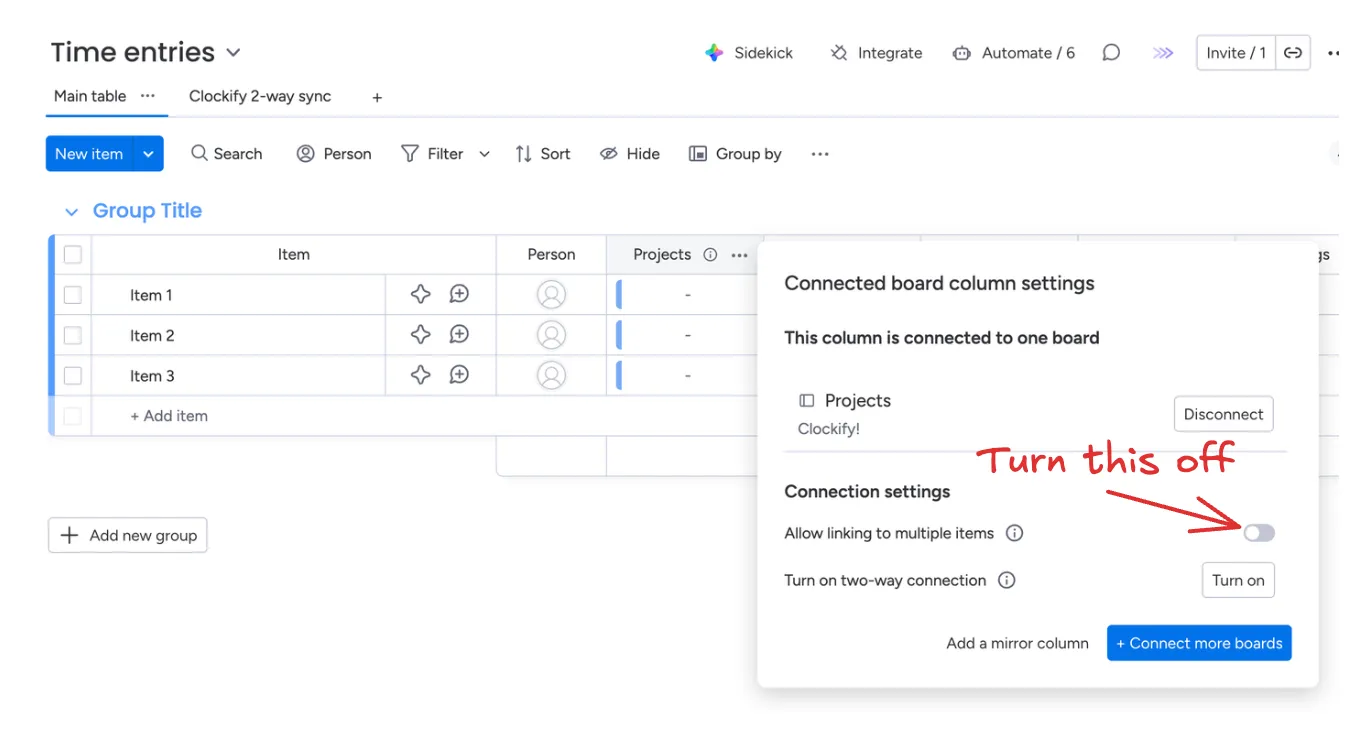
Create a connected boards column linking the boards. Do not allow linking multiple items.
-
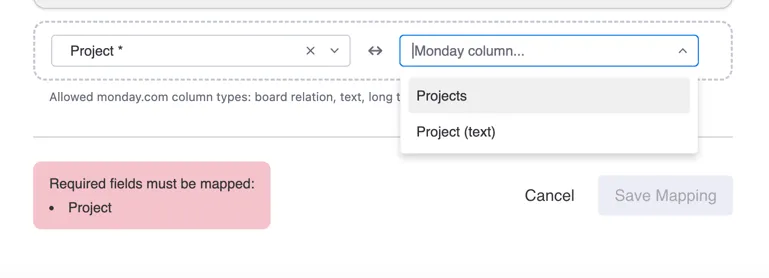
Configure synchronization on both boards. The Time entries board should be configured for the Time entries Clockify entity, and the Projects board for the Projects Clockify entity. Make sure to select the “Project” board relation column for the Clockify “Project” mapping.
-
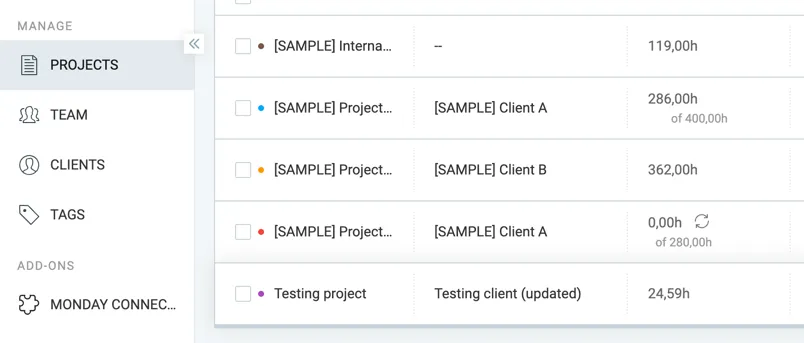
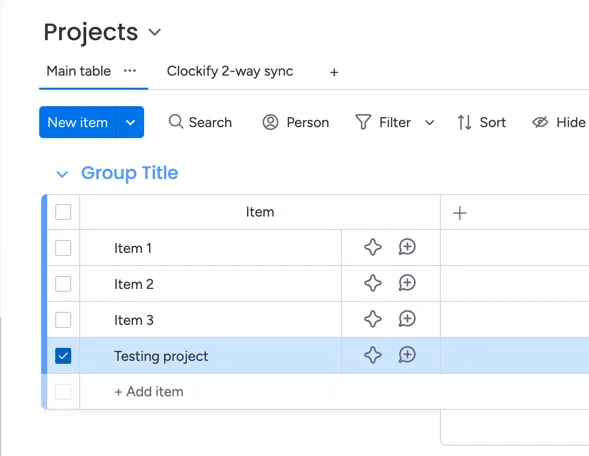
Synchronize a Clockify project (either by changing project fields or by creating a new project).
-
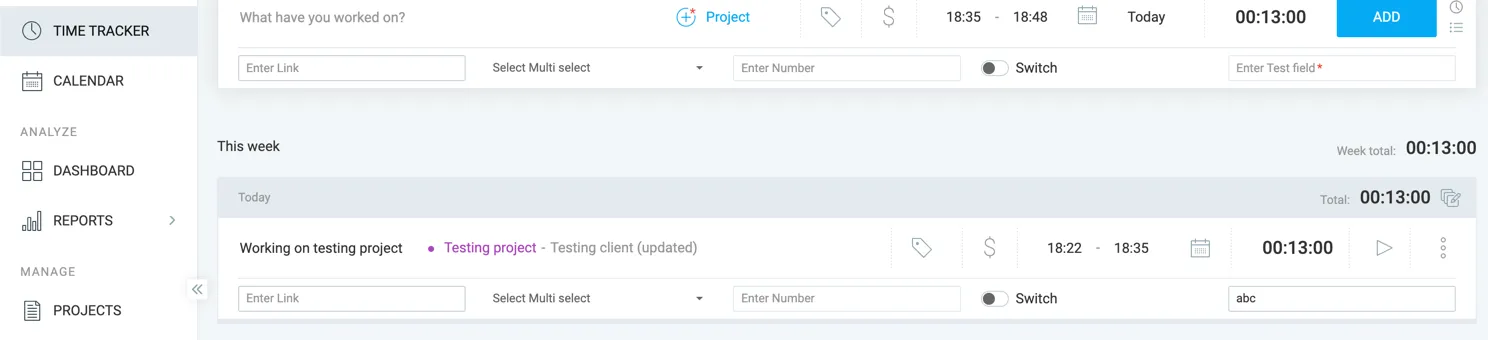
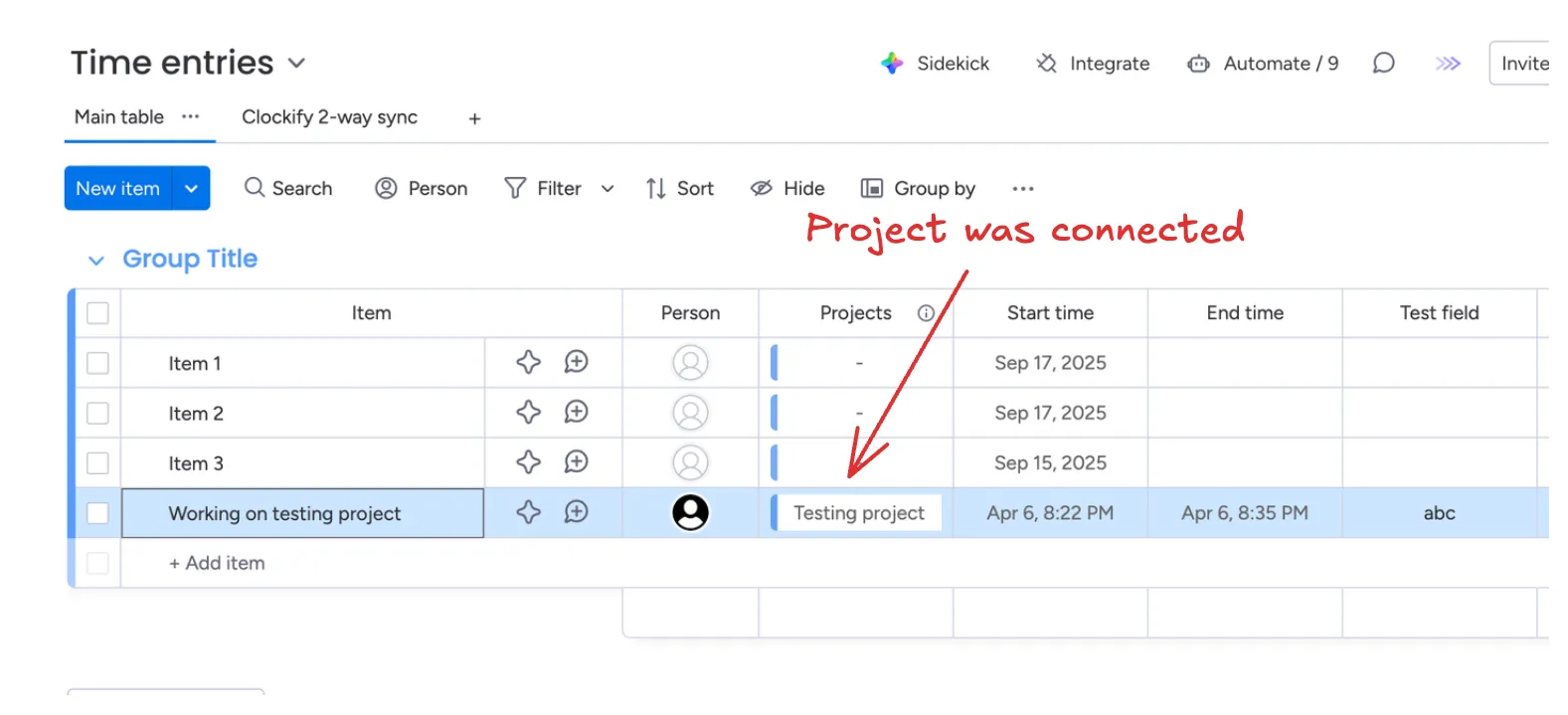
Now create a time entry in Clockify for this project and see it sync to monday!
Execution logs
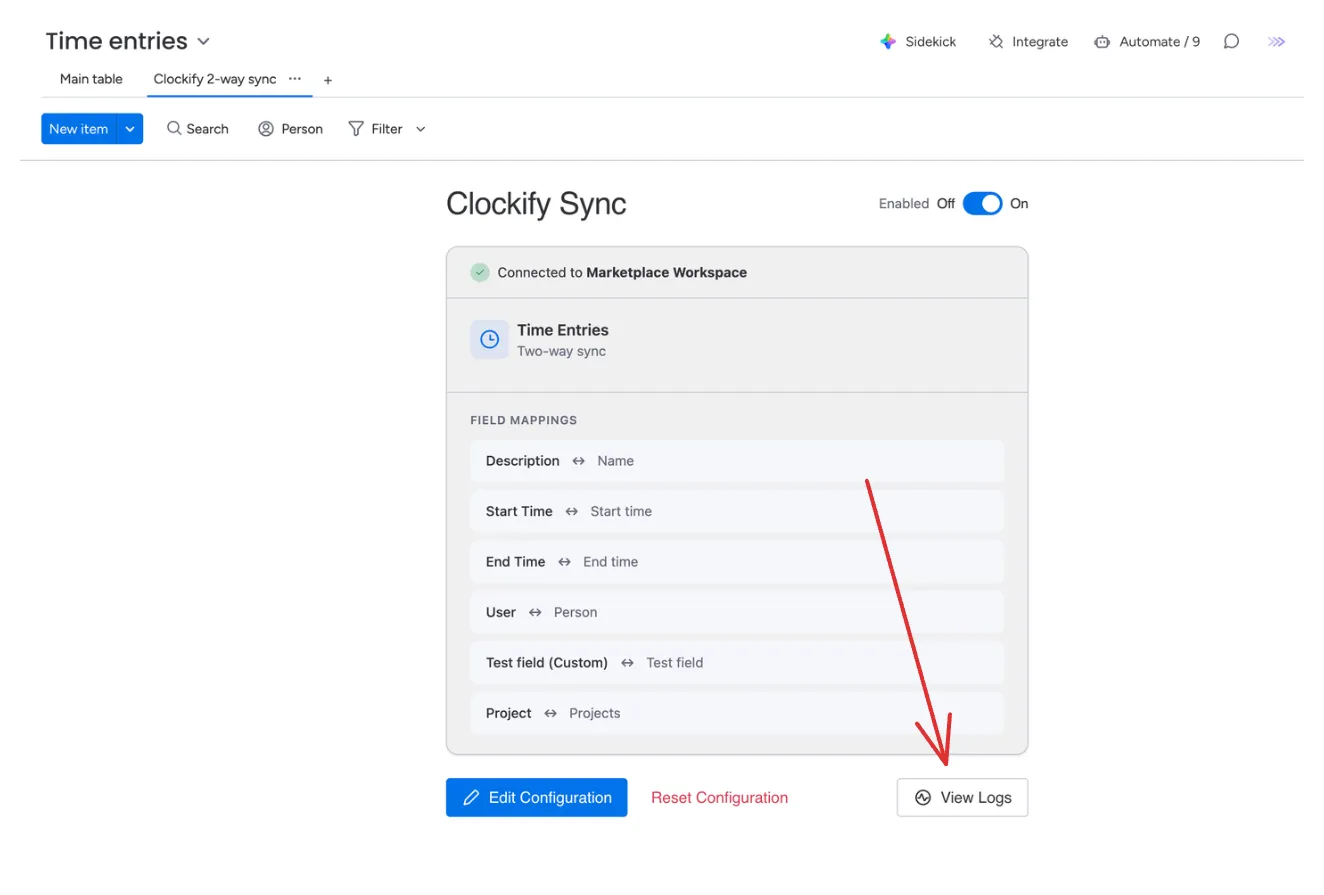
Execution logs let you check whether there were any issues with synchronization. Use them to investigate failures (e.g., a missing value in a required field).
To access execution logs, go to your monday board view and select “View Logs”.
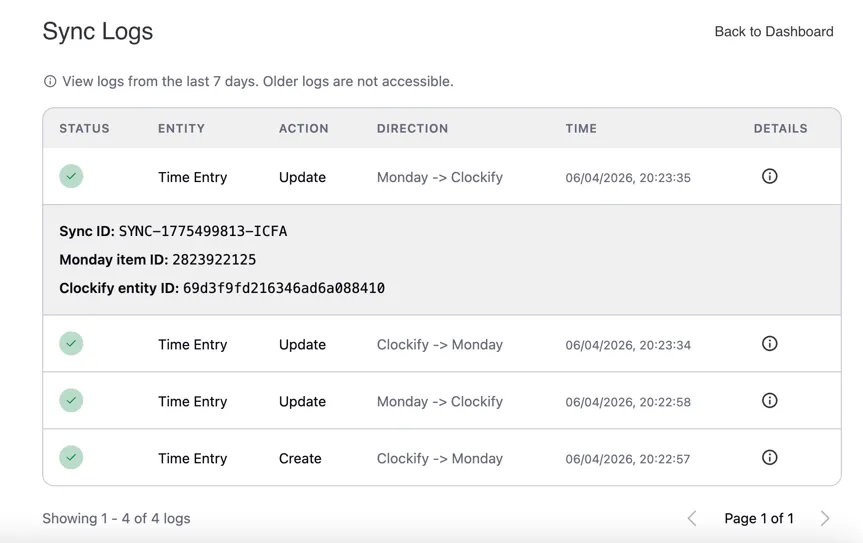
You’ll see the last 7 days of execution logs for this specific synchronization configuration. Click on the information icon to see the corresponding item IDs, the synchronization unique ID, and, in case of a failure, details about the issue.
FAQ
How long should I wait for changes to synchronize between systems?
It usually takes up to 5 seconds, but can take longer during periods of high load. If synchronization takes more than 3 minutes, please contact us.
What fields need to be mapped?
On the monday side, you need to map the item name. On the Clockify side, you need to map all fields marked as required in Clockify (this might include project, task, tags, or custom fields). Additionally, for time entries, you need to map the start time, end time, and user.
How are users matched between systems?
Users are matched by email.
Can I access logs older than 7 days?
No, they are removed from the system. If you need them, reach out to us and we can discuss extending the retention period.
Can changes in monday sync to a locked time entry in Clockify?
No, locked entries in Clockify cannot be changed. If you try syncing data from monday to a locked time entry, you’ll see an error in the execution logs.